This page shows every screen you see when you connect a number that is live in the WhatsApp Business app to Dualhook through Meta's Embedded Signup. The result is Coexistence: the app keeps working and the same number also gets Cloud API access.
Screenshots captured from Dualhook's production flow on 10 September 2026.
Which Version of Embedded Signup This Is
Dualhook runs Meta's Embedded Signup v4, the latest version, in its phone-number-first arrangement. Meta collects the phone number before any asset selection, then decides by itself whether to run the Coexistence path or the API-only path, based on the state of the number you gave it.
That is why nothing in this flow is labelled “connect my existing WhatsApp Business account”. Earlier versions of Embedded Signup put a Coexistence option on the asset-selection screen, and v4 removed it. Giving Meta the number that is live in your WhatsApp Business app is what triggers Coexistence now, and there is no separate toggle for it in Dualhook or anywhere else.
Coexistence is also not a setting Dualhook turns on per account. Every session Dualhook launches carries Meta's Coexistence launch selector, featureType: "whatsapp_business_app_onboarding", and one Embedded Signup configuration serves every customer, with Coexistence connections completing through it every day. So when Meta does not offer the Coexistence path, the cause is the state of that particular number rather than a missing flag on Dualhook's side. The eligibility list is where to look next, and Embedded Signup explains what the selector does.
Before You Start
- Use a desktop browser such as Chrome or Firefox in a normal window. Allow popups. Do not start from an in-app browser inside WhatsApp, Instagram, or an email app.
- Have the primary phone with the WhatsApp Business app next to you, updated to the latest version. The number you connect must be the one that is live in that app.
- Sign in to the Facebook account that manages your Meta Business Portfolio, or be ready to create one.
- Decide how you want to handle chat history. Meta asks once, on the phone, and the choice cannot be changed later.
- Keep the Dualhook tab open from start to finish. Closing it mid-flow is the most common reason a connection does not appear.
In Dualhook, click New Connection, enter the connection name, webhook URL, and verify token, then click Connect with WhatsApp. The Meta popup opens.
Part 1: In the Meta Popup
Meta asks for your phone number first. Once it recognizes the number as a WhatsApp Business app number, it switches to the Coexistence path by itself.
Step 1: Start the Meta onboarding
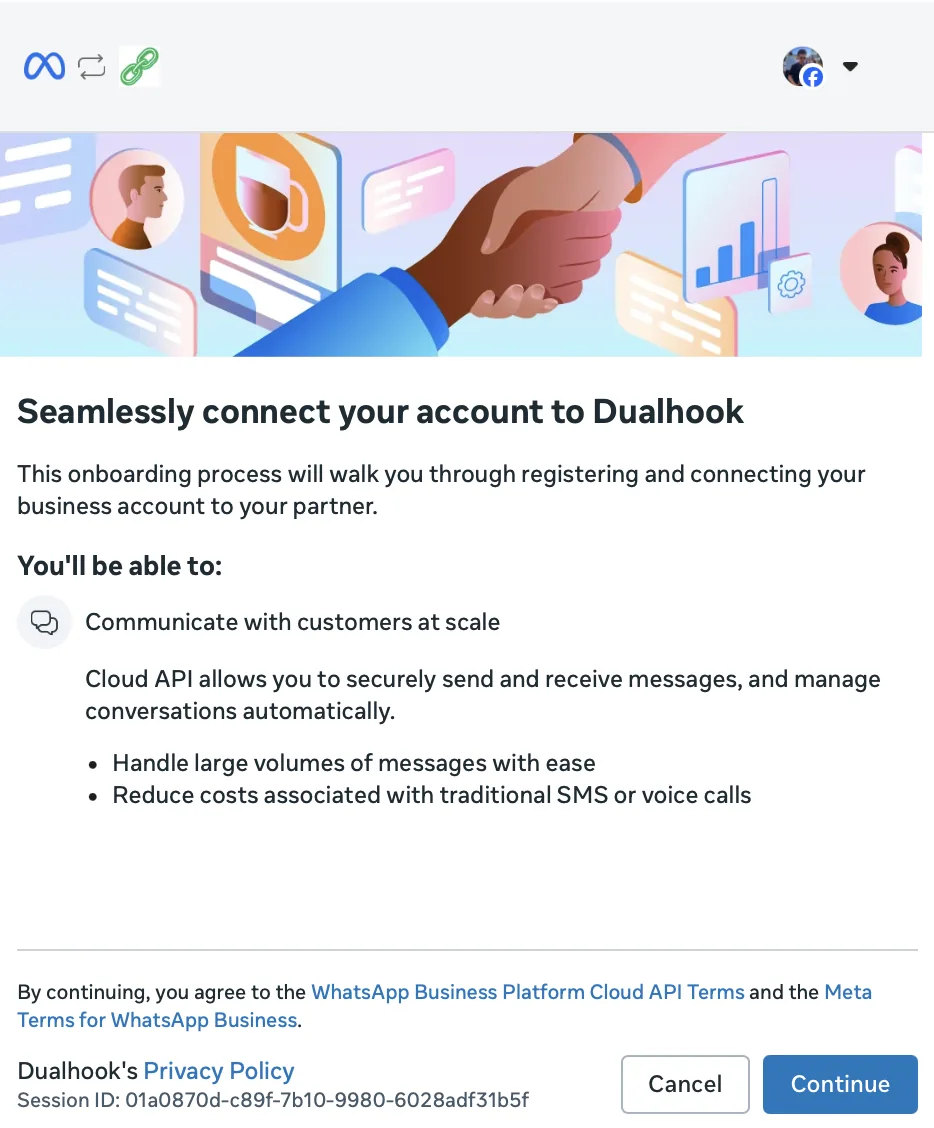
Meta opens with a short overview of what connecting to Dualhook enables. Click Continue.
Step 2: Pick your number if it shows “Registered”, otherwise enter it as a new number
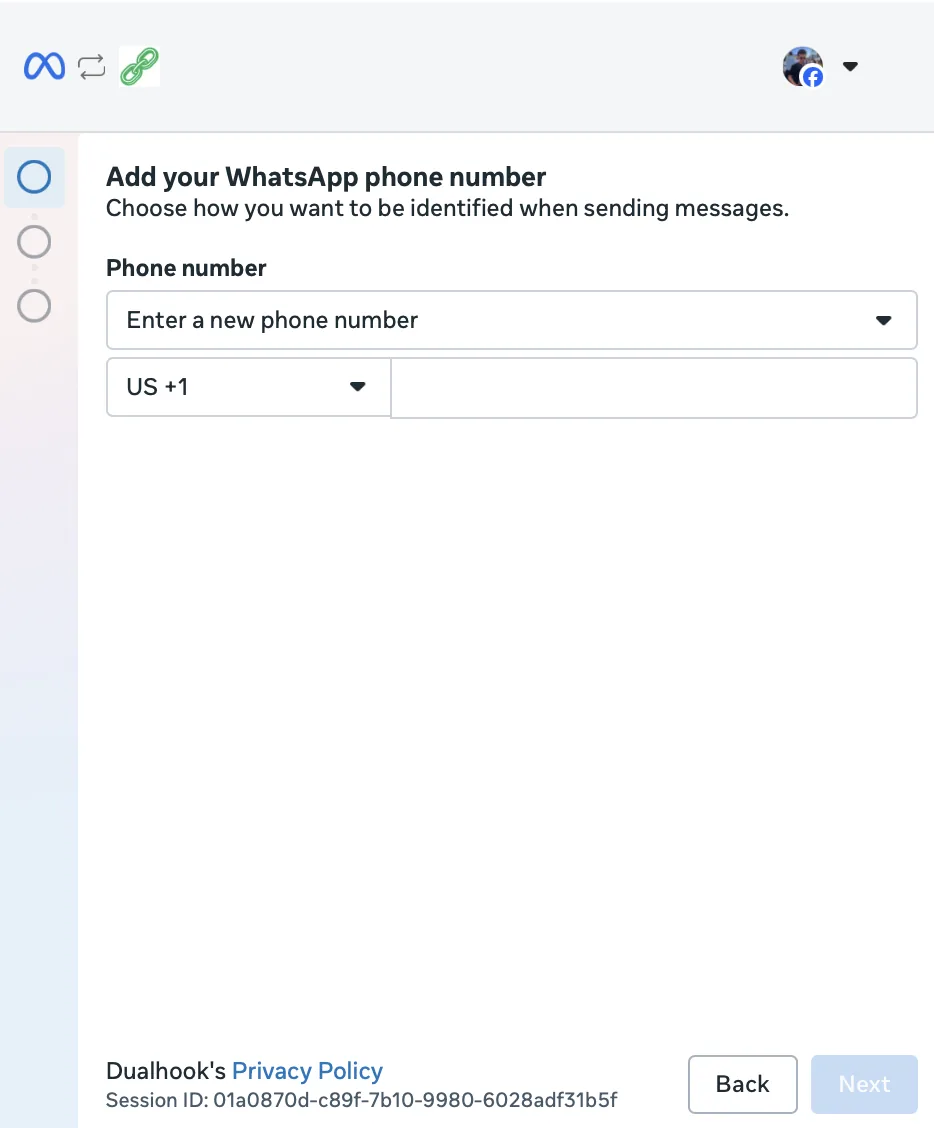
Open the Phone number dropdown and check whether the number that is live in your WhatsApp Business app is listed with a Registered badge.
- Listed as Registered: select it and click Next.
- Not listed, or listed without that badge: choose Enter a new phone number, pick your country code, type the number, and click Next.
The “new” wording is Meta's, and it confuses many people: the number is new to the WhatsApp Business Platform, not to you. Your WhatsApp Business app account is not touched by this step. Either entry leads to the same place, because Meta decides from the state of the number, not from which control you used.
Step 3: Confirm your WhatsApp Business app profile
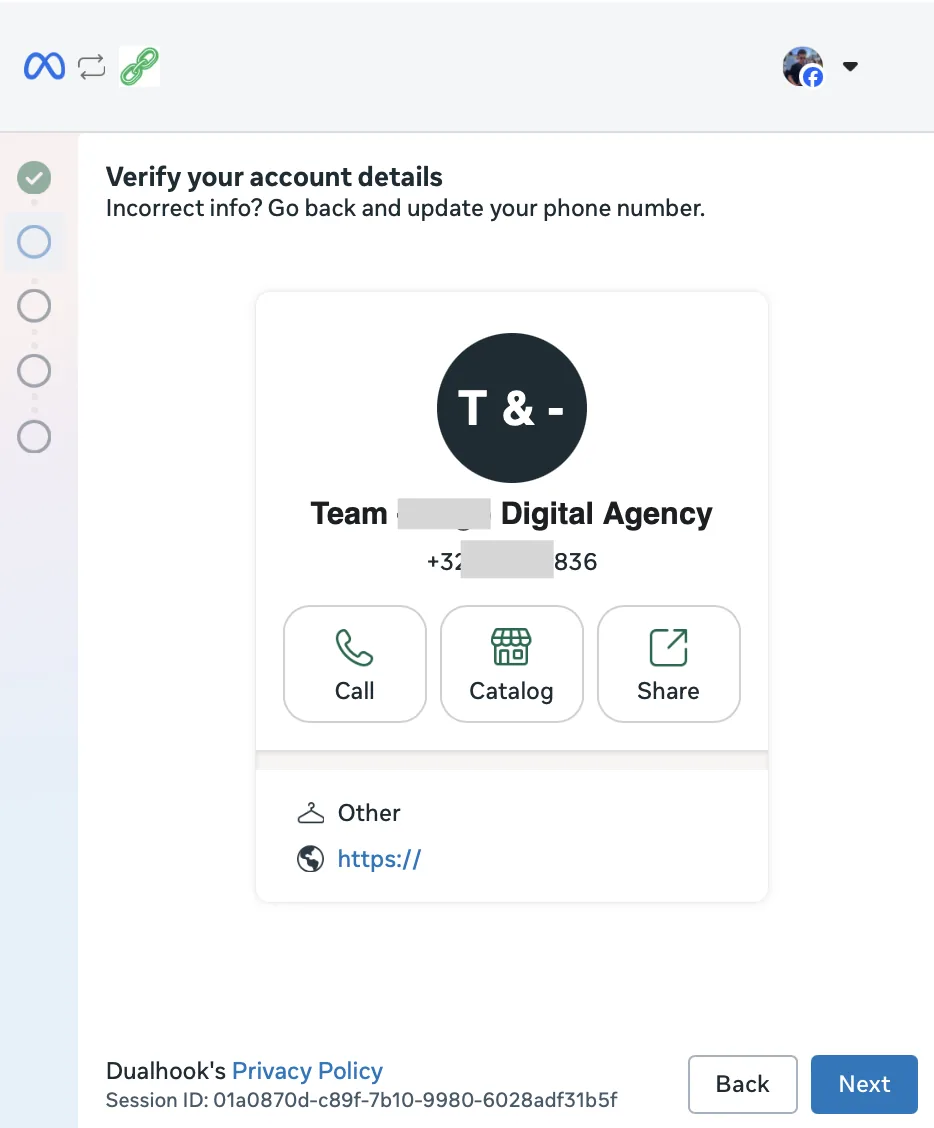
Meta shows the business profile from your WhatsApp Business app: picture, name, number, category, and website. Seeing this card means you are on the Coexistence path. Check the details and click Next.
If Meta asks for an SMS or voice verification code instead of showing this card, stop and click Back. That request belongs to the API-only path, which moves the number away from the app. See Signs You Are on the Wrong Path.
Step 4: Select the business portfolio
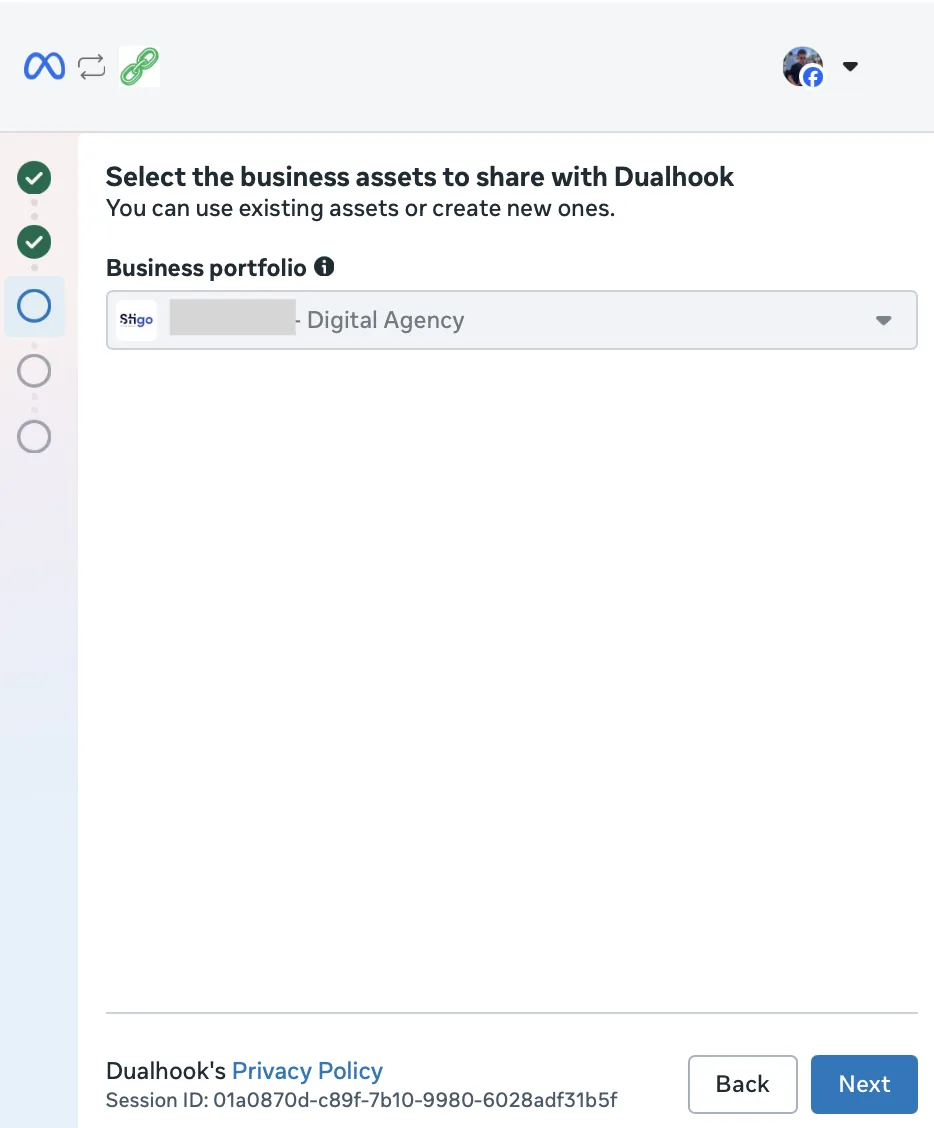
Choose the Meta Business Portfolio that should own the WhatsApp Business Account. Use an existing portfolio when you have one. Meta often restricts brand-new portfolios created inside this popup, so creating one here is a last resort. Click Next.
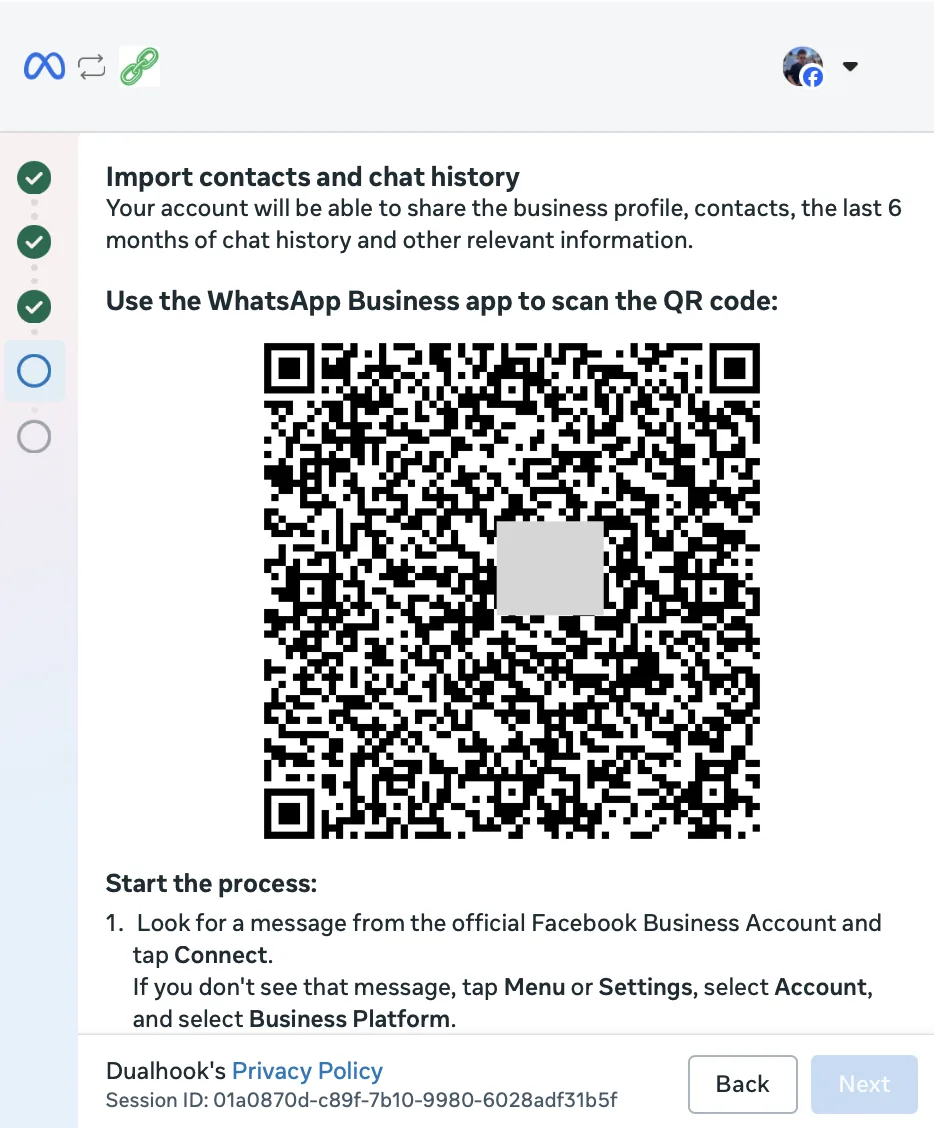
Step 5: Scan the import QR code
Meta shows a QR code for the one-time import of your business profile, contacts, and up to six months of chat history. Open the WhatsApp Business app on your phone and scan it. Meta also sends a WhatsApp message with the same link to the number itself.
Leave the popup open. The Next button stays greyed out until you finish the steps on your phone, and then the popup continues on its own.
Part 2: In the WhatsApp Business App
The next four screens happen on the phone. Use the primary phone that runs the WhatsApp Business app, not a linked or companion device.
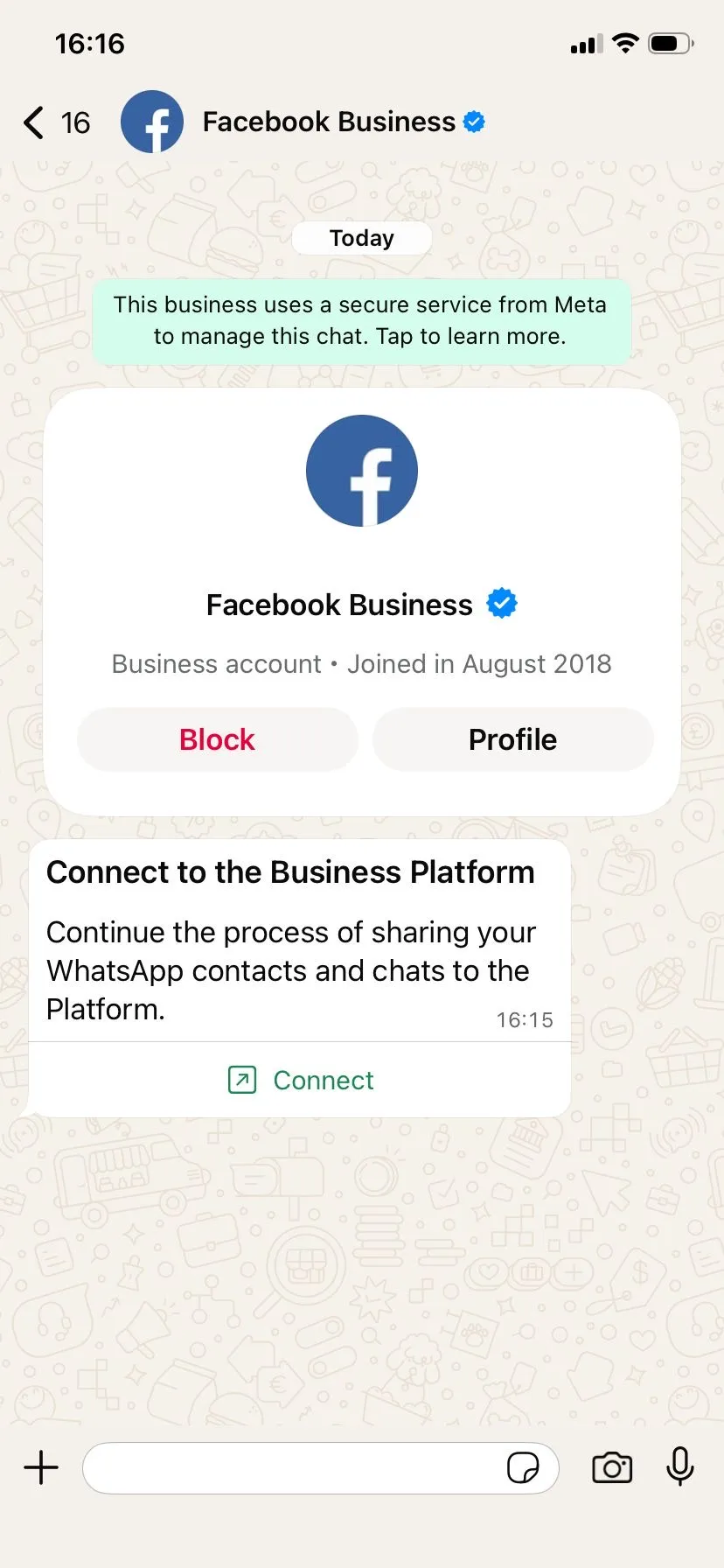
Step 1: Open the Meta prompt
You receive a verified message from Facebook Business with a Connect to the Business Platform card. Tap Connect. If the message does not show up, open Menu or Settings, then Account, then Business Platform.
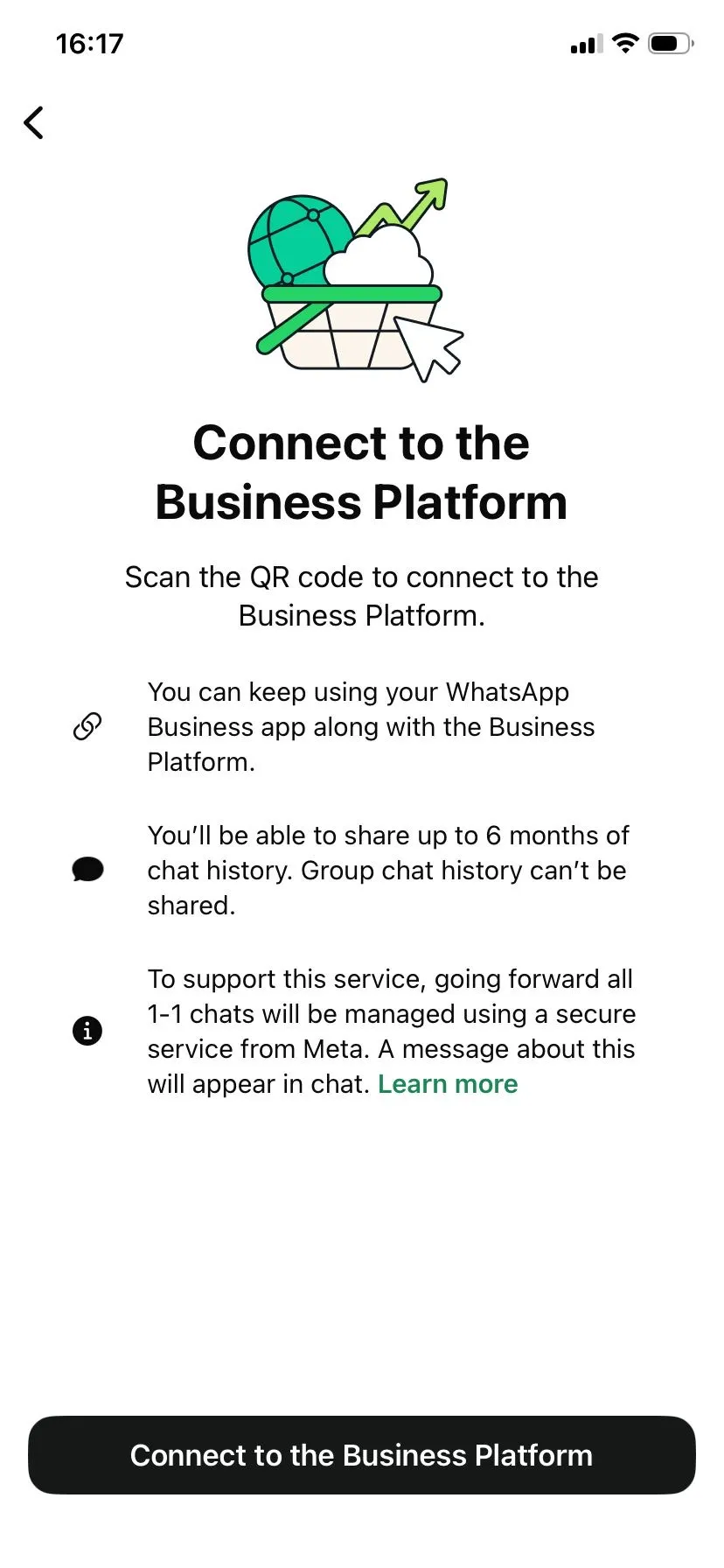
Step 2: Review the Coexistence explanation
Meta explains how Coexistence works: you keep using the WhatsApp Business app, chat history sharing has limits, and one-to-one chats stay protected. Tap through.
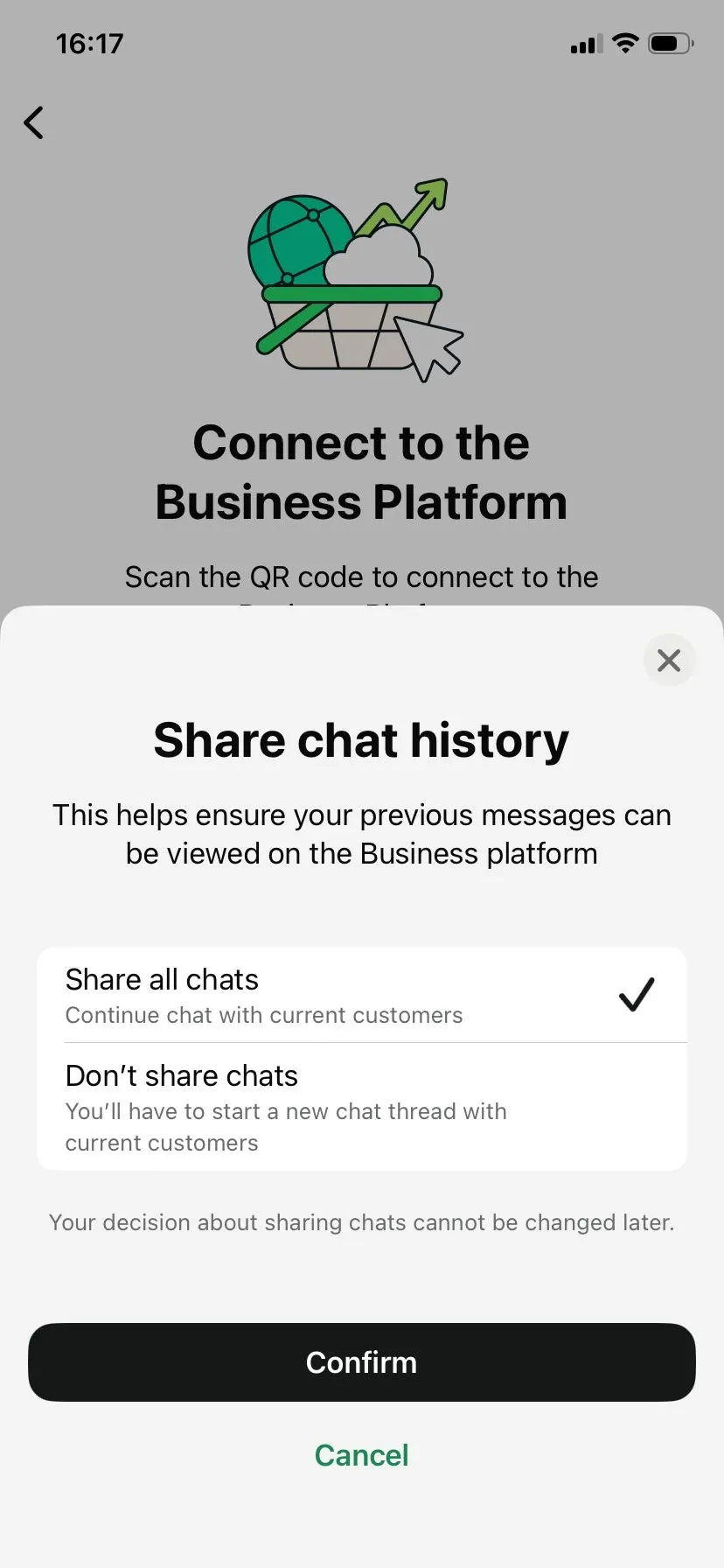
Step 3: Choose chat history sharing
Pick whether to share all chats or start new threads with current customers. This is a one-time decision and cannot be changed later.
Step 4: Confirm the connection
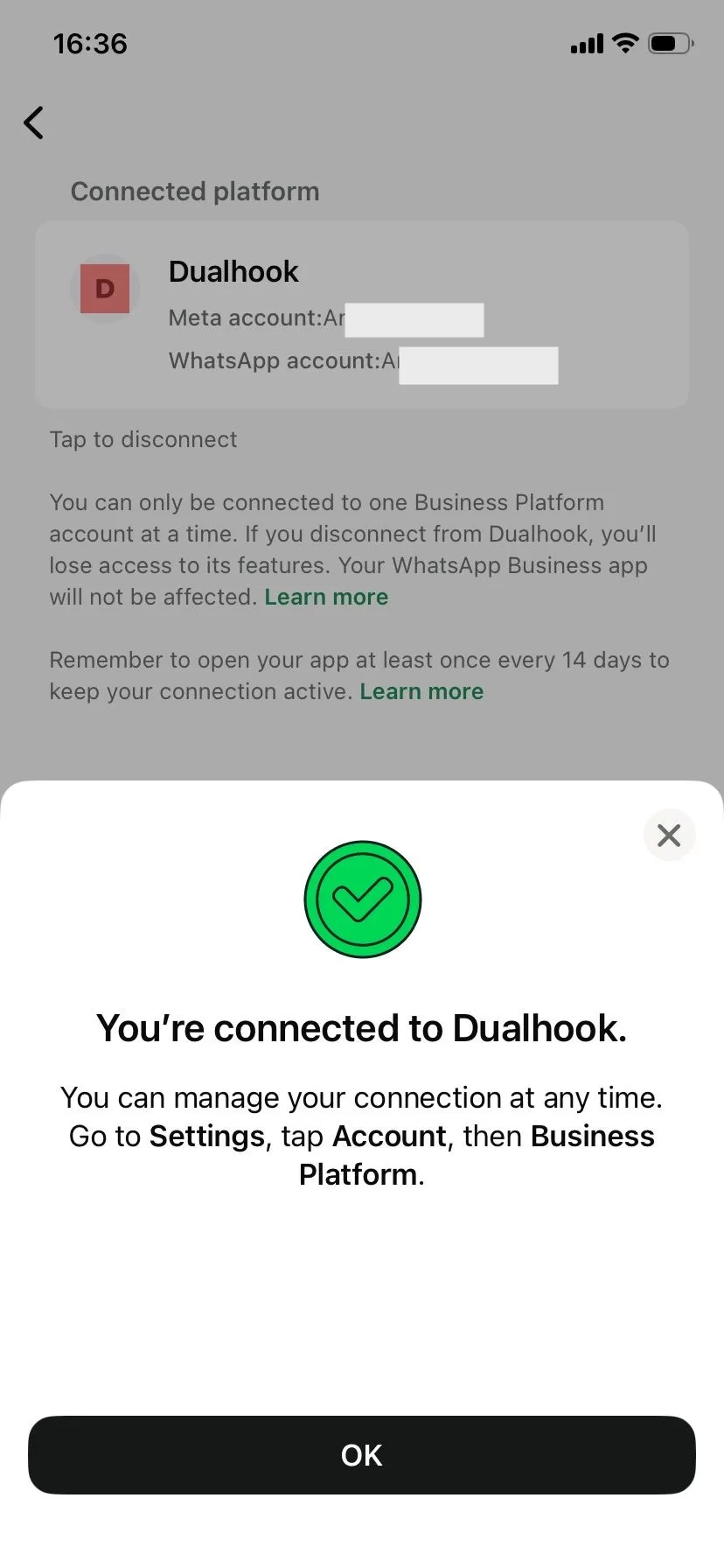
Dualhook appears as the connected Business Platform with a success confirmation. You can manage this later in the app under Business Platform. Now go back to the popup on your computer.
Part 3: Back in the Meta Popup
Once your phone confirms the connection, the popup continues on its own.
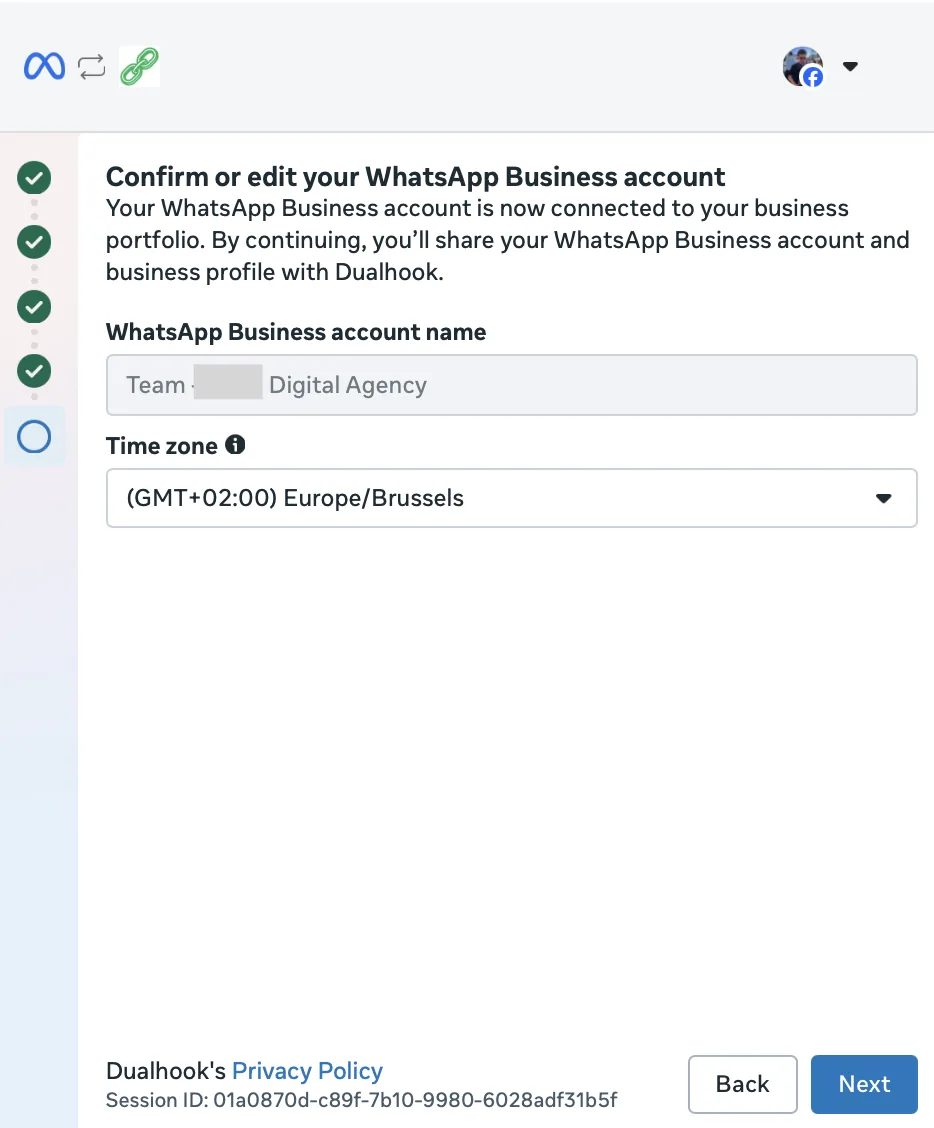
Step 6: Confirm your WhatsApp Business account
Meta creates a WhatsApp Business Account for the number. The account name comes from your app profile and cannot be edited here. Pick your time zone and click Next.
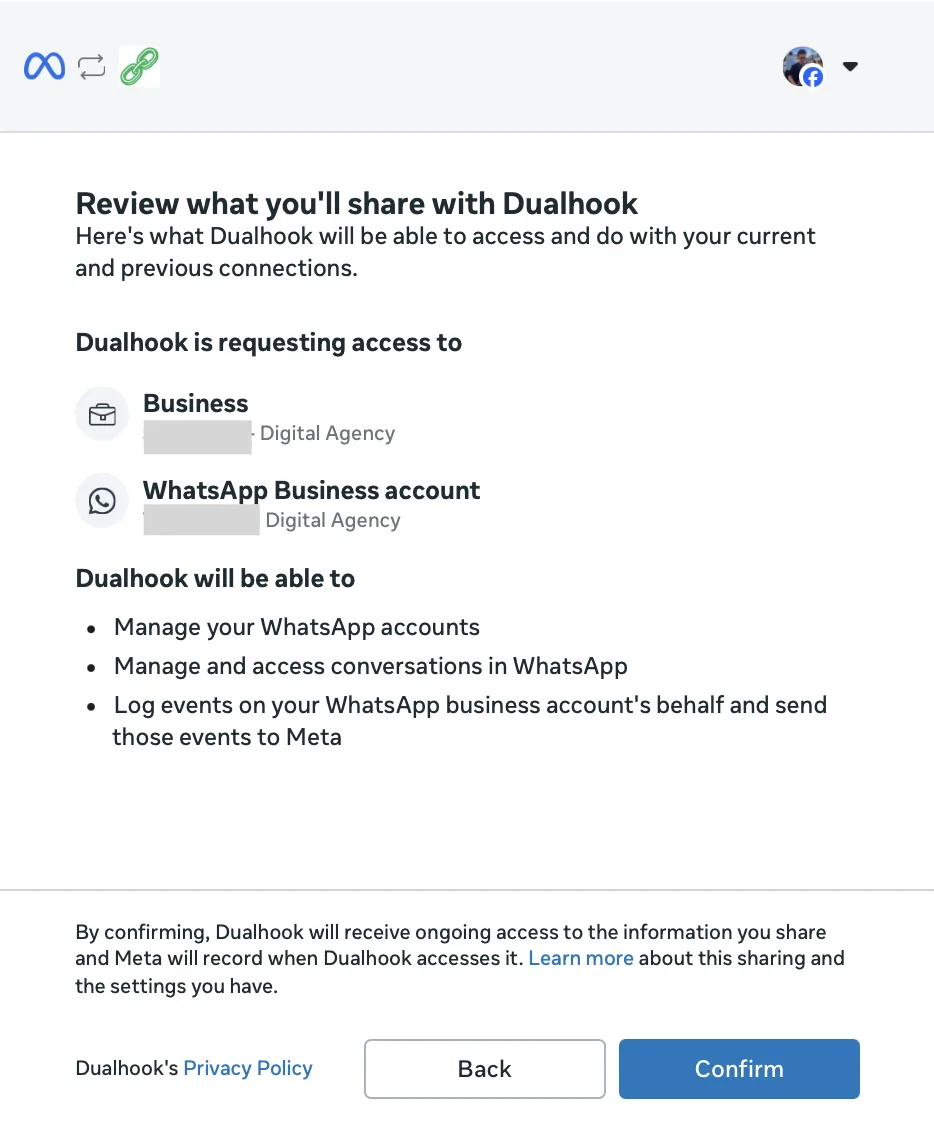
Step 7: Review what you share with Dualhook
Check that the business portfolio and WhatsApp Business Account listed are the ones you expect, then click Confirm. These permissions let Dualhook register the connection and manage your Webhook Override. See WhatsApp Business API Permissions for what each permission covers.
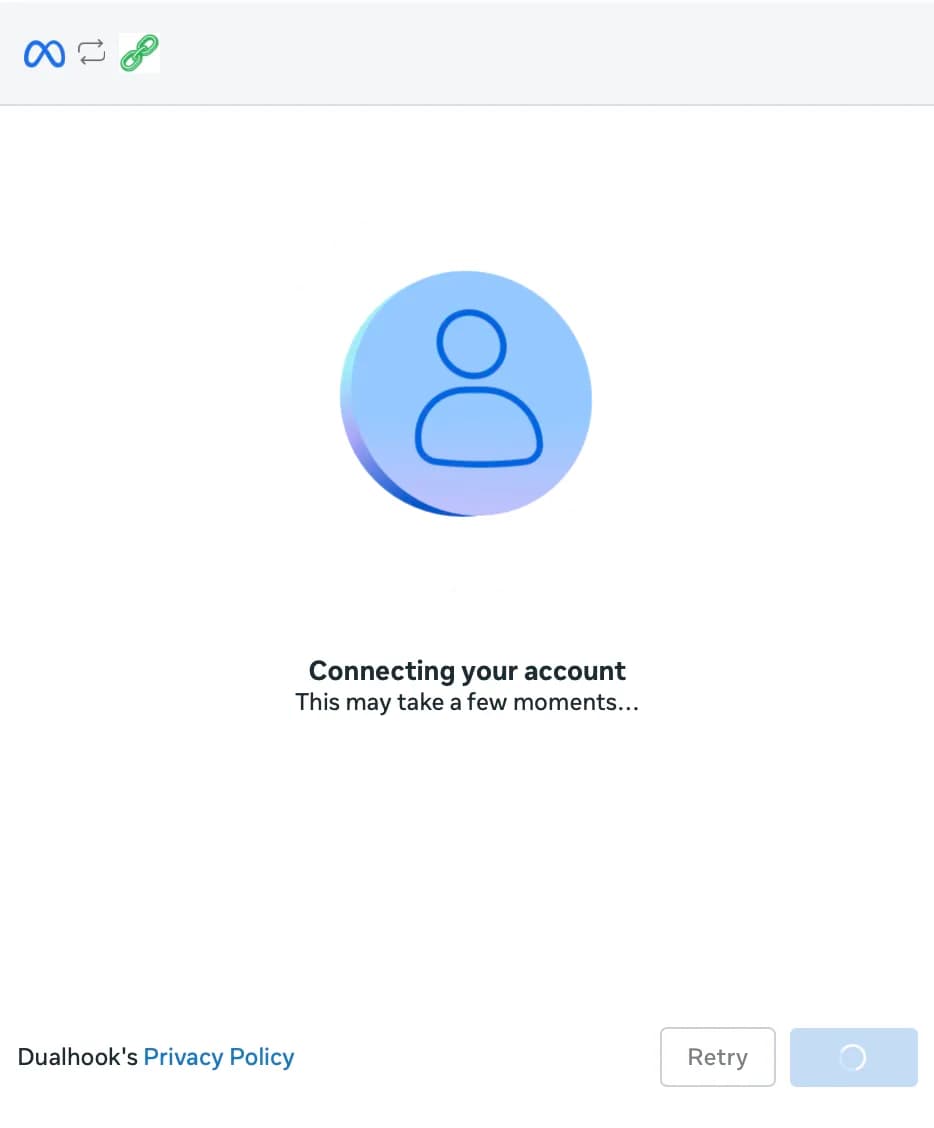
Step 8: Wait while Meta connects the account
This can take a few moments. Keep the popup open. Only click Retry if Meta shows an error.
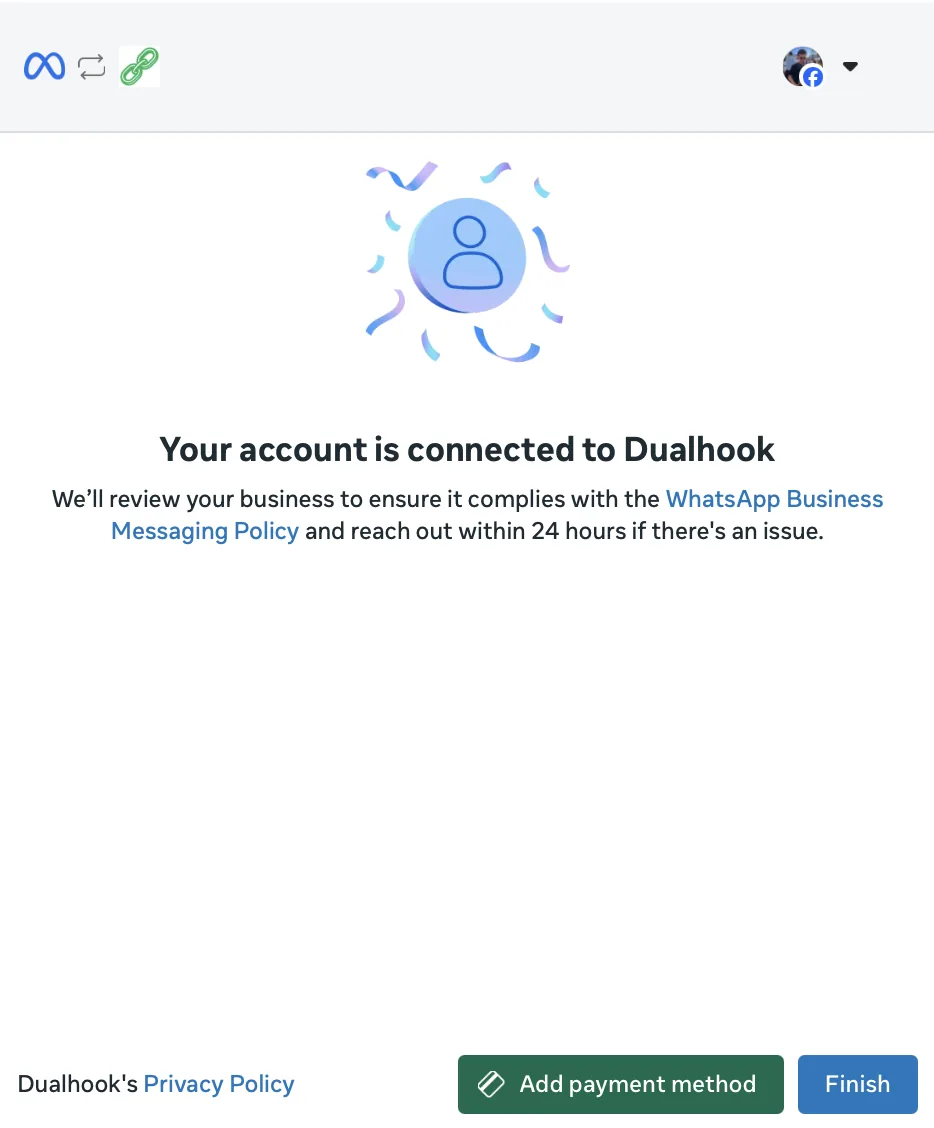
Step 9: Click Finish
Meta confirms that the account is connected to Dualhook. Click Finish to hand the connection over to Dualhook. A Meta payment method is not required to finish; you can add one later in WhatsApp Manager when you need paid messaging.
Part 4: Back in Dualhook
Meta's side of the flow ends the moment you click Finish. The popup closes, Dualhook takes over, and a Finalizing your connection screen appears while it links the WhatsApp Business Account and activates your Webhook Override. Keep the tab open until that screen closes on its own and opens your new connection.
Everything below happens after Embedded Signup itself has completed. Both cases are recoverable from the dashboard, and neither one requires deleting anything at Meta.
Don't See Your Connection in Dualhook?
Meta can finish its side while the final handoff back to the Dualhook tab never lands. You are then left with Dualhook shown as a connected Business Platform in the WhatsApp Business app, but no connection in the dashboard. That is a browser-side failure rather than a lost account, so do not delete the number, the WhatsApp Business Account, or the portfolio. The fix is to run Embedded Signup again in a clean browser, and the Connections page may also show a Your WhatsApp connection may need one more try banner with a Retry connection button. Connection Not Appearing After Embedded Signup has the full retry steps.
If Meta Could Not Set Your Webhook Override
Setting the override is the one step in this flow that depends on your own server. Dualhook subscribes to the WhatsApp Business Account and hands Meta your webhook URL, and Meta then sends a verification GET to that URL. The connection is created either way, but Meta starts delivering events only once the subscribe succeeds. If it does not, the connection page carries an alert naming the cause:
- Meta could not verify your webhook. The alert quotes exactly what your endpoint returned to Meta and offers a Test verification GET button, which re-registers with Meta automatically once your endpoint answers correctly. The verification handshake is the contract your endpoint has to meet, and the alert links a working receiver for common frameworks and automation tools.
- Meta rejected the subscribe call. The access token is missing a permission, or the WhatsApp account is no longer linked. Reconnect through the WhatsApp signup button to issue a new token.
The connection itself stays in place while you fix either of these. Nothing about the WhatsApp Business app or your number changes.
Signs You Are on the Wrong Path
Meta decides between the Coexistence path and the API-only path from the state of the number you type. These are the signs that you left the Coexistence path, and what to do:
- Meta asks for an SMS or voice verification code after the phone-number screen. That is the API-only path. Click Back, check the country code and the number, and type it again under Enter a new phone number. If the code request comes back, stop; do not request more codes. Meta is not offering Coexistence for that number, and the reasons are on the Coexistence page and in the error index.
- The number is in the dropdown but without a “Registered” badge, or greyed out with a note such as “Doesn't meet requirements”. That entry is a phone record already sitting in one of your WhatsApp Business Accounts that never finished registering, and selecting it leads to the SMS or voice code prompt. Ignore it and type the number under Enter a new phone number.
- The popup jumps to “Your account is connected to Dualhook” without a QR code or any confirmation on the phone. The number went through the API-only path. Do not click Finish and retry on your own; contact support with screenshots of the last few screens you saw.
- Meta says the number is already registered to a WhatsApp account and asks you to disconnect or migrate it. Do not disconnect anything; that would delete the app account. Contact support instead.
If Something Goes Wrong
- Meta shows a numbered error inside the popup. Look it up in the Embedded Signup error index before deleting or recreating any asset.
- Meta finished but no connection appears in Dualhook. Follow Connection Not Appearing. Do not delete the number, the WhatsApp Business Account, or the portfolio.
- Meta says the account is already shared with another partner. Follow the error 2655093 guide.
- You need help. Contact support with the step where you got stuck, the exact error text, and screenshots of the screens you saw, including the phone-number screen with the dropdown open. Those screenshots show us what you selected and typed, which is what most of these cases turn on. Never send the popup URL, a verification code, or your two-step PIN.
FAQ
Why does Meta ask me to enter a new phone number when the number already has WhatsApp Business?
Because the wording describes the WhatsApp Business Platform, not your phone. The number is new to the platform even though it has been live in the WhatsApp Business app for years. Entering it there does not create a second number and does not affect the app account.
Where is the option to connect my existing WhatsApp Business account?
There is no such button in Embedded Signup v4. Meta removed the Coexistence option from the asset-selection screen and now triggers Coexistence automatically when the number you submit is already in use with the WhatsApp Business app. The confirmation happens in the app itself, through the QR code and the Connect prompt.
Will I lose the WhatsApp Business app or my chats?
No. Coexistence means the app and the Cloud API run on the same number at the same time. You keep using the app. The one-time import copies your business profile, contacts, and up to six months of chat history, and Meta asks once whether to share chat history at all.
What does it mean if Meta asks for an SMS or voice verification code?
You are on the API-only path, which moves the number away from the WhatsApp Business app. Go back and submit the number again. If the code request returns, stop and do not request more codes. Meta is not offering Coexistence for that number, and repeated requests hit a rate limit that nobody can reset.
Do I need to add a payment method to finish?
No. The success screen offers Add payment method next to Finish, and Finish is enough to hand the connection to Dualhook. You can add a payment method later in WhatsApp Manager, which Meta requires before you can send paid messages.
Can I change the chat history choice later?
No. Meta asks once during onboarding, in the WhatsApp Business app, and the answer is final for that connection.
How long does the whole flow take?
About five minutes when the number is eligible and the phone is at hand. The QR scan and the in-app confirmation are the slowest parts, and Meta can take a moment on the connecting screen after you confirm the permissions.